Gaming Mouse Basics
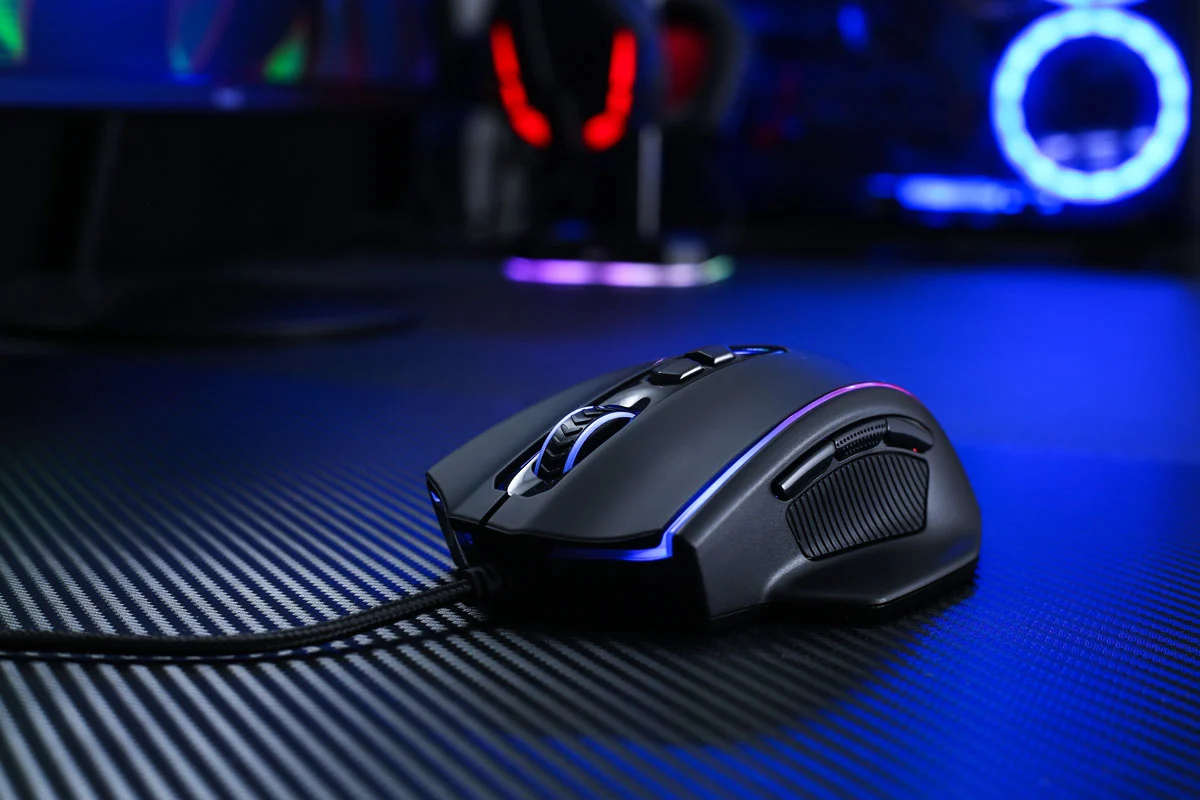
A gaming mouse stands out through measurable design choices that affect aiming consistency, movement control, and comfort during long sessions. Those choices usually show up in the sensor type and firmware behavior, the tracking surface tolerance, the polling rate and USB reporting path, the switch and click mechanics, and the weight distribution that changes how the mouse stops and starts. For example, a mouse with a high polling rate can still feel inconsistent if its sensor struggles on your desk mat or if the feet wear unevenly. A mouse with a lighter shell can reduce fatigue for some grips, yet it can also feel twitchy if the center of mass sits too far forward.
Most buyers encounter the same terms: DPI, CPI, polling rate (often 1000 Hz), lift-off distance, acceleration settings, and click latency. DPI describes counts per inch, but the more useful question is how the sensor converts motion into cursor movement across different speeds. A mouse that tracks well at slow micro-adjustments and fast flicks tends to feel “predictable,” even when the spec sheet looks similar to competitors. I keep a small aside here: on firmware updates, some brands change smoothing or angle snapping behavior, and the feel after an update can differ even when the DPI number stays the same.
Main Pain Points
People often compare gaming mice using only DPI or polling rate, then discover the mouse behaves differently on their actual surface. DPI and polling rate describe reporting and scaling, not whether the sensor maintains stable tracking under your hand’s motion patterns. Another common mistake involves ignoring lift-off distance and glide friction; a mouse that lifts easily can cause cursor drift when you reposition your hand, while a mouse that drags can hide tracking issues by forcing slower movement.
Supporting technologies matter because they sit between the sensor and your game. The sensor’s firmware handles motion filtering, angle snapping, and how it reacts to acceleration. The USB path and driver stack affect how quickly the cursor updates reach the OS, and the game’s input pipeline can add its own buffering. Switches affect click feel and debounce timing, but they do not directly change aim accuracy; they change how reliably you can time actions under stress. Even the shape and grip width influence micro-movements, because a fingertip grip on a wide shell can force the wrist to compensate, which changes the motion profile the sensor sees.
Wireless adds another dependency: battery voltage, radio link quality, and power-saving modes. Some wireless mice advertise high polling rates, yet they may drop to a lower rate when the battery falls or when a power profile changes. That behavior can be subtle, and it rarely matches the marketing line on the box. If you play with a wireless mouse, you also need to consider whether your setup includes 2.4 GHz interference from routers, USB 3.0 hubs, or nearby devices.
How To Choose Wisely
Match Sensor to Your Surface
Start by identifying your main tracking surface: desk, mouse pad type, or bare desk. Many sensors track well on cloth pads but struggle on glossy or textured surfaces, and the failure mode shows up as jitter, skipping, or inconsistent stopping. Look for measurements of tracking performance rather than only sensor model names, because two firmware revisions can behave differently on the same hardware. If the mouse supports adjustable lift-off distance, test it with your normal hand repositioning. A practical outcome to aim for: stable cursor movement during slow, deliberate micro-movements and repeatable stopping when you lift and set down again.
When you test, use a consistent method. Move the mouse slowly across the pad, then repeat at a faster speed, then repeat with a slight angle change. If you notice cursor “wobble” at certain angles, you may be hitting surface-dependent tracking behavior. I tend to do this after a firmware update—on one setup I saw a change after a driver package labeled 2024-11, and the mouse felt smoother but less “snappy” for flicks.
Pick Polling and Settings
Polling rate affects how frequently the mouse reports position to the computer. Most modern games and OS input stacks handle 1000 Hz well, but the real-world difference depends on your system latency and the game’s input handling. If you run a high frame rate, higher polling can reduce the time between updates, yet it does not fix poor tracking or bad mouse feet. For wired mice, 1000 Hz is common and usually a safe default; for wireless, verify whether the mouse sustains that rate for your battery level and whether it changes in power-saving modes.
In software, check for settings that alter motion: acceleration, smoothing, angle snapping, and “enhanced” tracking modes. Many players prefer raw, unmodified movement, but the best choice depends on the game and personal aim style. A realistic outcome: after you disable acceleration and keep smoothing off (when available), your aim should feel more consistent across different speeds, even if it takes a few sessions to adapt.
Also check in-game sensitivity and raw input settings. If the game applies its own smoothing or uses a different input mode, the mouse’s tuning may not translate as expected. This is where people get stuck: they change mouse settings but forget the game’s input options, then conclude the mouse is “bad.”
Evaluate Weight, Shape, and Click Feel
Weight affects how the mouse stops and starts, while shape affects how your hand applies force. A lighter mouse can reduce fatigue for some grips, but it can also amplify tremor if your hand control is still developing. Measure your preference using your normal grip: fingertip, claw, or palm. If your grip leaves gaps or forces your fingers to curl tightly, you may get inconsistent micro-corrections, which looks like “sensor issues” even when the sensor performs fine.
Click feel matters for timing. Mechanical switches vary in actuation force and travel, and debounce behavior can affect how reliably rapid clicks register. If you play rhythm-heavy shooters, you may notice differences in how quickly you can repeat clicks without bottoming out. A practical test: press and release at a steady cadence for 30 seconds, then repeat after 10 minutes; fatigue changes how the switch feels. I’ve seen people prefer a slightly heavier click for control, then switch to a lighter click and regret it after a long session.
Weight distribution matters too. Two mice with the same total grams can feel different if one places more mass near the palm and the other near the front. That changes how you pivot for micro-aim and how you recover after a flick.
Plan for Cable and Wireless Tradeoffs
Cable drag affects micro-movements, especially on low-friction pads. A flexible paracord-style cable can reduce drag, but it still depends on your desk setup and how you route the cable. If you use a bungee, test whether the cable’s path creates tension that pulls the mouse sideways during fast swipes. For wireless, check charging method and whether the mouse supports wired charging while playing. Some wireless mice behave differently when charging, and that can change your aim mid-session.
Battery life is not just a number; it depends on polling rate, lighting, and sensor settings. If a mouse advertises long battery life at a lower polling rate, confirm the battery estimate at your intended rate. A realistic outcome: you should be able to play multiple sessions without hitting a low-battery warning that triggers a rate change or a power profile switch.
Case Examples
Desk Surface Jitter After a Switch
An anonymized player switched from a cloth mouse pad to a bare desk for a week. The new mouse tracked at normal speeds but produced small cursor jumps during slow strafing corrections. The player had been comparing DPI and polling rate only, so the fix came from changing lift-off and testing on the original pad. After returning to the cloth surface and setting lift-off to match their repositioning habit, the cursor stopped “micro-skipping” during slow movements. The lesson: sensor performance depends on surface and firmware behavior, not just headline specs.
Wireless Rate Drops Mid-Rank
An anonymized competitive player used a wireless mouse set to 1000 Hz. During a long session, the mouse felt slightly less responsive, and the player later found that the mouse reduced its reporting rate when battery dropped below a threshold. The player also had a USB 3.0 hub near the setup, which likely increased radio noise. After moving the receiver, keeping the mouse on a consistent power profile, and charging before the session, the feel returned to normal. The lesson: wireless performance can change with battery state and interference, so testing should include a full session length.
Comparison Checklist
| What to Check | Why It Matters | What “Good” Looks Like | How to Test |
|---|---|---|---|
| Tracking on your surface | Prevents jitter and skips | Stable cursor at slow and fast motion | Repeat slow/fast passes at different angles |
| Lift-off distance | Stops drift during repositioning | No cursor movement when you lift and set down | Lift to your normal height, then place back |
| Polling rate behavior | Affects update frequency | Sustains your chosen rate during play | Check wireless mode changes after battery drops |
| Shape and grip fit | Controls micro-corrections | Comfortable hand posture without finger strain | Use your grip for 20–30 minutes before judging |
| Click feel and repeatability | Affects timing under stress | Consistent actuation at your cadence | Rapid-click test, then repeat after fatigue |
Common Mistakes
Buying based on DPI alone leads to disappointment because DPI does not predict tracking stability on your desk mat. Another mistake involves leaving acceleration or smoothing enabled in mouse software and then blaming the mouse for inconsistent aim. Some players also ignore feet condition; worn skates can increase friction and change how the mouse stops, which makes the sensor feel “off.”
Wireless buyers sometimes assume the advertised polling rate stays constant. Battery state, power profiles, and interference can change behavior, and the mouse may silently switch modes. Cable users can also misjudge drag by testing only on a clean desk; once the cable shifts during fast swipes, the feel changes. If you test for only five minutes, you miss the fatigue effects that change grip pressure and movement patterns.
Finally, people often overlook firmware and driver versioning. A mouse can feel different after an update, and the change may not show up in the spec sheet. If you notice a sudden change, record your settings and compare them to the previous version before you start chasing new hardware.
FAQ
What Does Polling Rate Change?
Polling rate controls how often the mouse reports position to the computer. Higher rates can reduce the time between updates, but tracking quality and input settings still determine whether aim feels consistent.
Is Higher DPI Always Better?
Higher DPI only changes cursor scaling. Aim consistency depends on sensor tracking behavior, lift-off handling, and whether acceleration or smoothing alters movement.
Do Wireless Gaming Mice Add Lag?
Wireless can add latency through radio transmission and power management, but many modern wireless mice perform well. Battery level and interference can change the experience, so testing across a full session matters.
What Should I Set for Acceleration?
Many players disable mouse acceleration in both OS and mouse software to keep movement consistent. If a game uses special input modes, match the mouse settings to that mode rather than assuming defaults align.
How Do I Choose Between Shapes?
Choose based on your grip style and hand size, not only weight. A shape that forces awkward finger curl can change your motion profile and make tracking feel worse even when the sensor performs correctly.
Author's Insight
A gaming mouse earns its label through how it converts your hand motion into stable cursor movement under your real conditions: your pad, your grip pressure, your cable or wireless environment, and your game’s input settings. Specs like DPI and polling rate describe parts of the pipeline, yet they do not predict surface-dependent tracking, lift-off behavior, or how firmware handles motion filtering. When buyers test only on a store surface or for a few minutes, they miss the factors that show up after fatigue and after battery or driver changes. A careful approach records settings, tests on the intended surface, and checks whether the mouse maintains the chosen behavior across a full session.
Key Takeaways
Prioritize tracking stability on your actual surface, then verify lift-off behavior and click feel. Treat polling rate as one input parameter, not a guarantee of responsiveness, especially for wireless where battery and interference can change performance. Match the mouse shape to your grip to keep micro-corrections consistent, and test for at least 20–30 minutes to catch fatigue effects. Record your mouse and game input settings before firmware or driver updates, because changes can alter feel even when the spec sheet stays the same.