Making A Device Battery Last Longer
Battery life depends on two different things: how long the battery runs on a charge today, and how much capacity remains after months of use. Most “battery health” advice targets the second goal by slowing chemical aging, which also tends to improve day-to-day runtime. Heat and high charge levels accelerate aging in lithium-ion and lithium-polymer batteries, which power most phones, laptops, tablets, and many wearables. Your charging habits shape both temperature and how long the battery sits near full charge. A practical example: leaving a phone at 100% on a hot dashboard for hours ages the battery faster than charging to 80–90% and using it soon after.
Main Problems And Pain Points
People often treat battery drain and battery wear as the same problem. Drain comes from power-hungry apps, weak cellular signal, bright screens, and background activity; wear comes from electrochemical stress inside the cell. A phone can feel “fine” for months while still losing capacity in the background, which shows up later as shorter runtime. Another common mistake involves charging to 100% and leaving the device there overnight, which keeps the cell at a high state of charge for long periods.
Battery aging also depends on temperature history. Heat increases reaction rates inside the cell and can raise the risk of permanent capacity loss. Fast charging adds current, which can raise temperature, and thick phone cases can trap heat during charging. Laptop batteries face similar issues, and they also experience wear from repeated full cycles plus time spent near full charge when plugged in. Some devices include charging management, but behavior varies by brand, model, and firmware version.
Supporting technologies matter because they change power draw. Screen brightness and refresh rate strongly affect runtime on phones and tablets, while Wi‑Fi versus cellular can change power use by a lot depending on signal strength. On laptops, background indexing, external drives, and high-performance CPU modes can drain power quickly. On wearables, GPS and continuous heart-rate monitoring raise draw, and the device may also use more power when it searches for a stable connection. Even the charging protocol matters: USB-C Power Delivery and vendor fast-charging profiles can change how much heat builds during charging.
Solutions And Advice
Charge Levels And Timing
Use a lower “top-off” target when you do not need maximum runtime. Many lithium-ion devices tolerate frequent partial charging better than long periods at 100%, so aiming for about 80–90% for daily use often reduces stress. If your device supports a “charge limit” setting, set it to 80% or 85% and charge to that limit before you leave. If it does not, you can still reduce time at full by unplugging soon after charging finishes. I have seen people ignore this because the phone shows “100%,” but the battery may remain warm for a while after the charger stops, which adds extra aging pressure.
Time matters too. Charging right before use usually keeps the battery from sitting at high charge for hours. If you charge overnight, look for a feature that delays charging until closer to morning; some Android devices expose this as “Adaptive Charging,” and some iOS devices use “Optimized Battery Charging.” On laptops, charging management often limits how long the battery stays near full when you keep the machine plugged in. A small aside: I checked a macOS setting on version 14.6 and found “Optimized Battery Charging” options that can reduce time at 100%, which is the kind of control that helps without changing your routine.
Heat Control During Use
Keep the device cool during charging and heavy tasks. Heat spikes often happen when charging and running demanding apps at the same time, such as navigation plus video plus hotspot. Remove thick cases while charging if your device runs warm, and avoid charging on soft surfaces that trap heat. In cars, direct sun can raise temperatures quickly, so charging in shade matters more than people expect. If the device feels hot to the touch, pause charging and let it cool before continuing.
For laptops, avoid leaving the machine on a bed or blanket while plugged in and running high-performance workloads. A simple airflow check helps: ensure vents are not blocked and consider cleaning dust from intake areas. On phones, lowering brightness and turning off high-power features during charging can reduce heat generation. Heat control does not require perfection; it requires reducing the worst-case scenarios that keep the battery warm for long stretches.
Reduce Power Draw Intelligently
Runtime improvements come from reducing power draw, not from “tricking” the battery. Start with the screen: lower brightness, shorten screen timeout, and use dark mode when your display technology benefits from it. On many phones, refresh rate settings affect drain; choosing a lower maximum refresh rate can reduce power use during scrolling. Background activity also matters: restrict background app refresh for apps that do not need constant updates, and disable location access “Always” for apps that do not require it.
Cellular conditions drive unexpected drain. When signal is weak, the radio works harder, which can increase consumption. Switching to Wi‑Fi when available, using airplane mode in low-signal areas, or waiting until you reach a stronger signal can reduce drain. On laptops, choose a balanced power plan when you are not gaming or rendering, and close browser tabs that run heavy scripts. If you use Windows, check the battery usage page in Settings to identify the top consumers; on macOS, Activity Monitor can show which processes spike CPU usage. Seeing the culprit often feels annoying, but it beats guessing.
Charging Methods And Cables
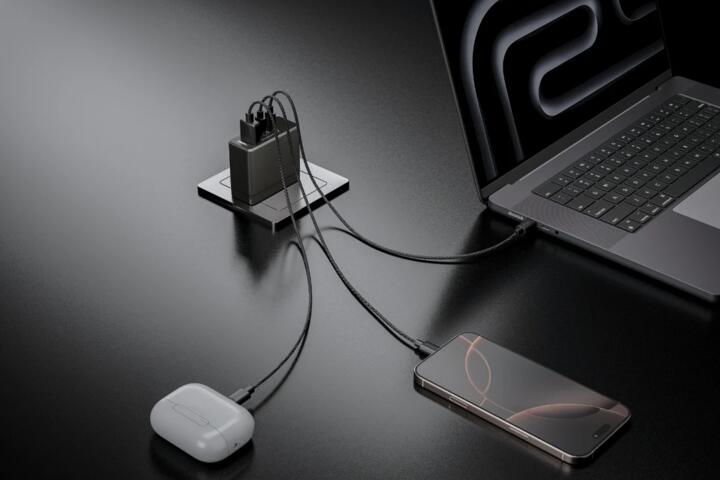
Use chargers and cables that match the device’s charging requirements. Mismatched or low-quality cables can cause slower charging, more heat, or unstable power delivery. For USB-C devices, a certified USB-C Power Delivery charger that supports the required wattage helps keep charging predictable. Avoid charging from underpowered ports that cause repeated negotiation cycles; those cycles can add heat and time. If your device supports “charging in bursts” or “battery protection,” the device firmware handles the details, and your job becomes choosing settings that reduce time near full.
Fast charging can be fine when you need it, but it often raises temperature. If you have time, use slower charging for routine top-ups. For example, charging a phone from 20% to 60% with a moderate charger can reduce heat exposure compared with pushing to 100% quickly. The goal is not to ban fast charging; it is to avoid repeated high-heat sessions that keep the battery stressed. A mild frustration many people hit: they buy a high-watt charger and then leave the phone at 100% on the charger all night, which cancels the benefit.
Case Examples
Phone With Overnight Charging
Scenario: Alex charges a smartphone every night and leaves it plugged in until 7:30 a.m. The phone sits in a warm bedroom near a window heater, and the battery health indicator later shows noticeable capacity decline. The fix starts with setting a charge limit to 80–85% and enabling optimized or delayed charging if available. Alex also stops charging in the warmest spot and unplugs soon after the charge limit is reached. After a few weeks, Alex still sees normal daily drain, but the battery no longer drops as quickly during the day, which suggests less stress and fewer “worst-case” heat hours.
Laptop Plugged In Daily
Scenario: Priya works from home and keeps a laptop plugged in most weekdays. The laptop battery shows reduced runtime when she takes it off the charger for meetings. The adjustment focuses on charging management: she enables the laptop’s battery health feature that limits full charge time and switches to a balanced performance mode for everyday tasks. She also reduces background load by limiting startup apps and closing heavy browser sessions. The runtime does not return to factory levels, because capacity loss already happened, but the laptop holds charge longer on trips after the new routine reduces additional wear.
Comparison Table And Checklist
| Goal | What To Change | Typical Outcome | Tradeoff |
|---|---|---|---|
| Longer battery health | Set a charge limit (often 80–90%) and reduce time at 100% | Slower capacity fade over months | Less runtime per charge |
| Longer runtime today | Lower brightness, shorten screen timeout, reduce background activity | More hours between charges | Less convenience (fewer updates, dimmer screen) |
| Lower heat stress | Avoid charging in hot spots; remove thick cases while charging | Less temperature-driven aging | Extra step during charging |
| Fewer surprises | Use correct chargers/cables; avoid underpowered ports | More stable charging and less heat | May require a compatible charger |
Step-by-step checklist you can follow for one week:
- Turn on any charge limit or optimized charging feature, then set the limit to 80–85% for daily use.
- Charge in a cool room and avoid charging on soft surfaces; stop charging if the device becomes hot.
- Lower screen brightness by one notch and set screen timeout to the shortest comfortable option.
- Restrict background refresh and set location access to “While Using” for apps that do not need constant tracking.
- Check battery usage once per day for two days, then adjust the top two offenders.
- Use fast charging only when you need it, and prefer slower charging for routine top-ups.
Common Mistakes
One mistake involves chasing a single number like “battery health 100%.” Many devices report battery health using internal estimates that do not map perfectly to real-world capacity, and the number can lag behind actual performance changes. Another mistake is using aggressive battery saver modes all day. Those modes can reduce background activity but also change behavior in ways that make the device feel unreliable, which leads people to disable the settings later.
People also overcorrect by fully draining the battery repeatedly. Lithium-ion batteries do not require full discharge cycles to “calibrate” in the way older battery types did, and deep discharge adds stress. Another error is ignoring heat during charging because the device still shows progress. A phone can charge while warming up, and the warmth can persist even after the charger stops, which means the “charging session” includes more than the minutes on the charger.
Finally, some users buy high-watt chargers and assume higher wattage always improves battery outcomes. Higher wattage can increase heat, and the device may still cap charging current based on its own limits. The practical approach focuses on matching the charger to the device’s supported profiles and using charge limits when available, not on maximizing wattage.
FAQ
How Often Should I Charge?
Charge when the battery drops to a level that fits your day, and avoid long periods at 100%. Frequent partial charging typically ages lithium-ion batteries less than repeated full-charge storage.
Does Fast Charging Damage Batteries?
Fast charging can increase temperature during charging, which can accelerate aging if repeated often. Using fast charging occasionally usually matters less than repeated hot sessions and long time spent near full charge.
Should I Always Keep It Below 20%?
Keeping the battery above very low levels helps avoid deep discharge, but the bigger aging drivers are heat and time spent near full. A practical target is to avoid letting the battery sit at 0% and to avoid leaving it at 100% for hours.
Why Does My Battery Drop Faster After Updates?
Updates can change background indexing, app behavior, and radio usage, which increases short-term drain. If drain persists for weeks, check battery usage stats and remove or adjust the settings that changed after the update.
Can I Fix Battery Wear With Settings?
Settings can slow additional wear by reducing heat and high state-of-charge time, but they cannot reverse capacity already lost. If runtime becomes unacceptable, replacing the battery may be the only practical remedy.
Author's Insight
Battery aging in lithium-ion devices follows patterns tied to temperature and state of charge, which is why charge limits and heat avoidance show up across many manufacturer battery-management systems. Runtime improvements come from power draw reduction, especially screen brightness, refresh rate, radios, and background activity. Device-specific features vary, so the most reliable approach uses the settings your device actually offers and measures results with battery usage stats. If you want a measurable experiment, change one variable at a time for a week and record daily runtime, not just the battery percentage at bedtime.
Key Takeaways
- Battery health and battery runtime come from different causes; charge habits mainly affect health, while settings and apps mainly affect runtime.
- Reduce time spent near 100% using a charge limit (often 80–90%) and avoid leaving the device on a charger for hours.
- Control heat during charging and heavy use; warm batteries age faster.
- Cut power draw with screen and background controls, and check battery usage to find the real drain sources.
- Use fast charging when needed, but prefer slower charging for routine top-ups.